Digital Accessibility
Digital accessibility is about making websites, apps, documents, communication and online services easier for more people to access, understand, navigate and use. Accessible digital design recognises that people interact with technology in different ways — and that barriers can often be reduced through thoughtful design, flexibility and choice.
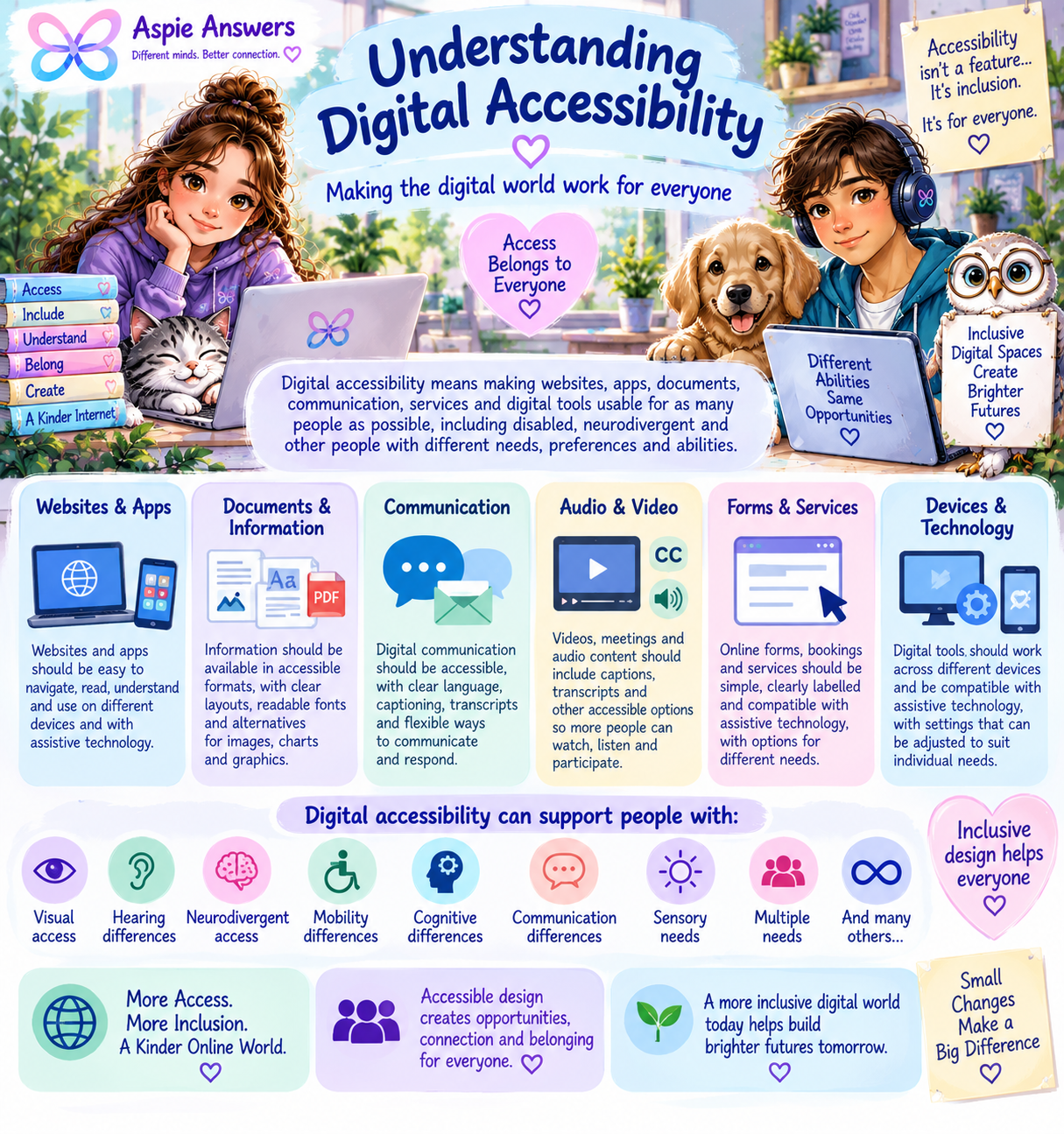
Understanding Digital Accessibility
Accessibility is broader than whether someone can simply open a website or app. It can involve whether information can be perceived, understood and navigated; whether controls can be operated in different ways; whether content works with assistive technology; and whether the experience creates unnecessary sensory, cognitive or communication barriers.
Websites & apps
Navigation, buttons, menus, forms, text, interactions and layouts should be usable in different ways.
Documents & information
PDFs, downloads, instructions and written information should be structured, readable and available in accessible formats.
Audio & video
Captions, transcripts and other alternatives can help people access spoken, visual and multimedia information.
Communication
Digital services work better when people have more than one reasonable way to communicate, respond or ask for support.
Assistive technology
Digital content should work with tools such as screen readers, magnification, keyboard access, switches and communication tools.
Sensory & cognitive access
Clearer layouts, predictable navigation, processing time and reduced visual or sensory overload can be just as important.
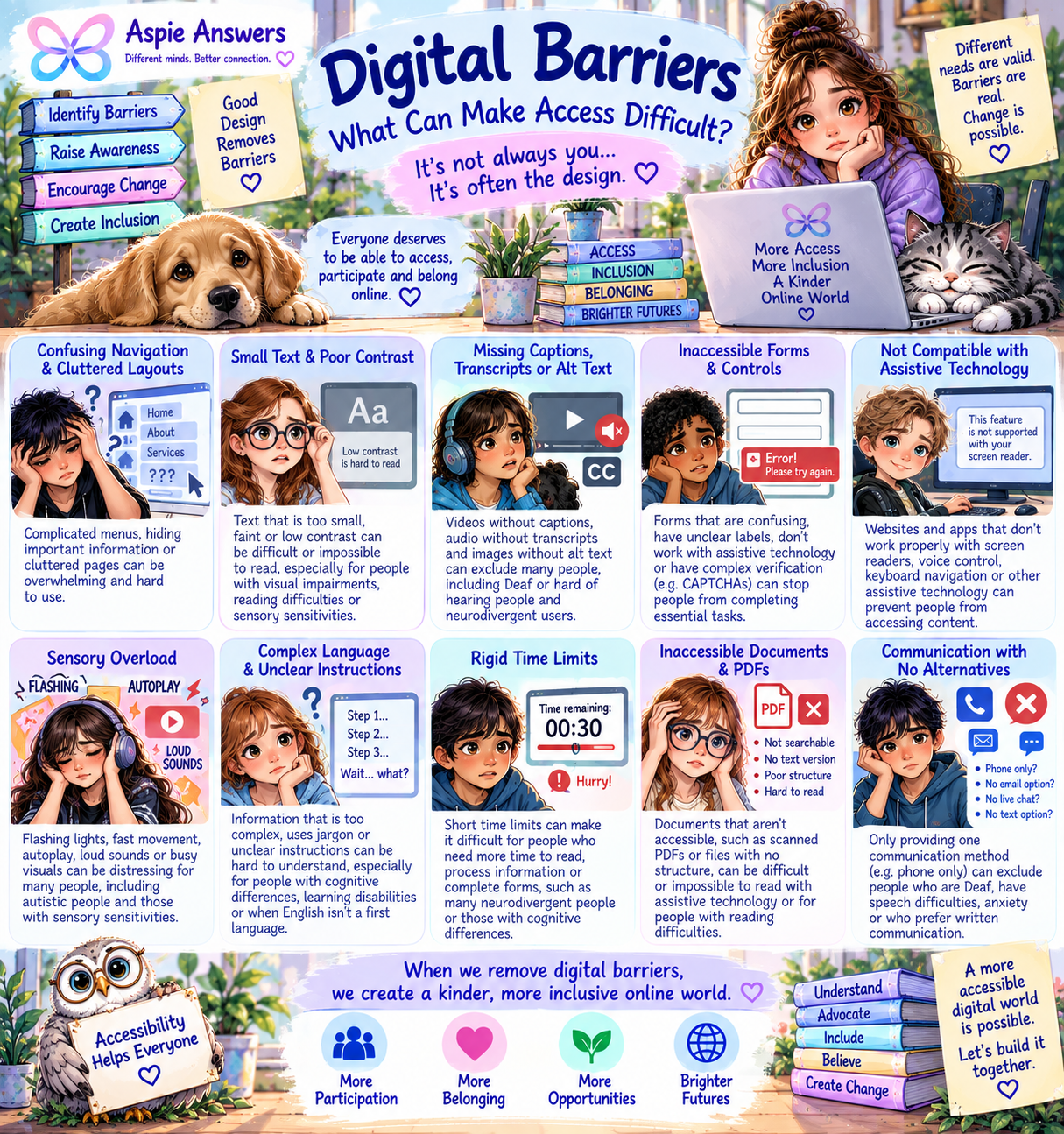
What Can Make Digital Access Difficult?
Digital barriers are not always obvious. A service may technically be online and available while still being difficult or impossible for some people to use independently.
Navigation & layout
Cluttered pages, unpredictable menus, inconsistent navigation or too many competing elements can make finding information harder.
Reading & processing
Small text, poor contrast, dense paragraphs, jargon and unclear instructions can create visual and cognitive barriers.
Media without alternatives
Missing captions, transcripts, audio description or meaningful image descriptions can exclude people from important content.
Forms & controls
Unclear labels, inaccessible controls, rigid validation or difficult verification systems can prevent people completing essential tasks.
Sensory overload
Flashing content, autoplay, unexpected sound, excessive animation and visually busy interfaces can create distress or overload.
Rigid ways of participating
Short time limits or allowing only one communication method can make access unnecessarily difficult.
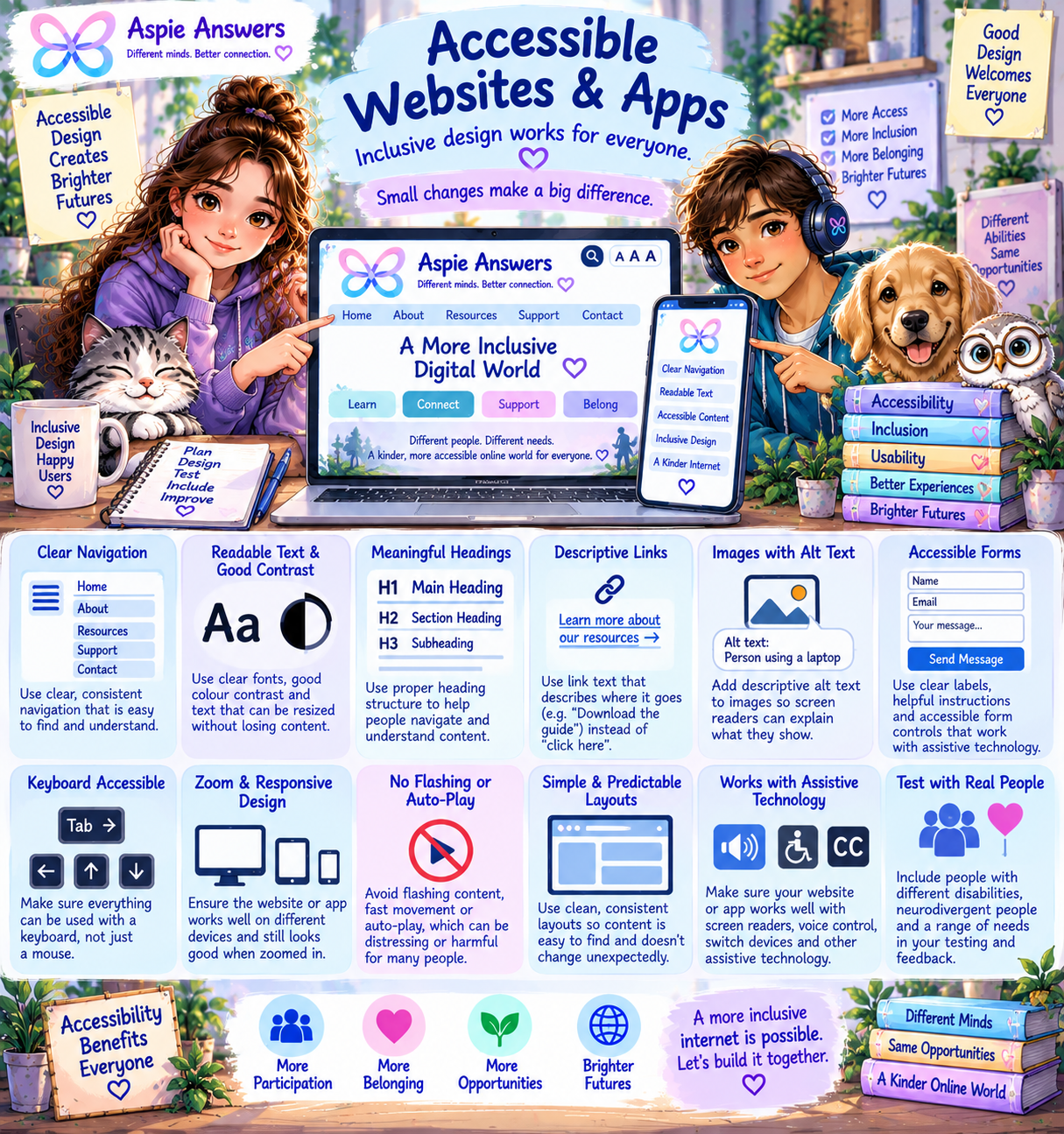
Accessible Websites & Apps
Accessible design helps people navigate, understand and interact with digital services in ways that work for them. Good accessibility often improves usability for everyone.
- Use clear and consistent navigation.
- Use readable text, adequate sizing and good contrast.
- Build pages with meaningful heading structures.
- Use descriptive links rather than vague instructions such as “click here”.
- Provide meaningful alternative text for informative images.
- Label form controls clearly and provide helpful instructions.
- Make functionality available by keyboard wherever possible.
- Support zoom, responsive layouts and different screen sizes.
- Avoid unnecessary flashing, movement and autoplay.
- Design predictable interfaces that do not change unexpectedly.
- Test with assistive technology and with people who have different access needs.
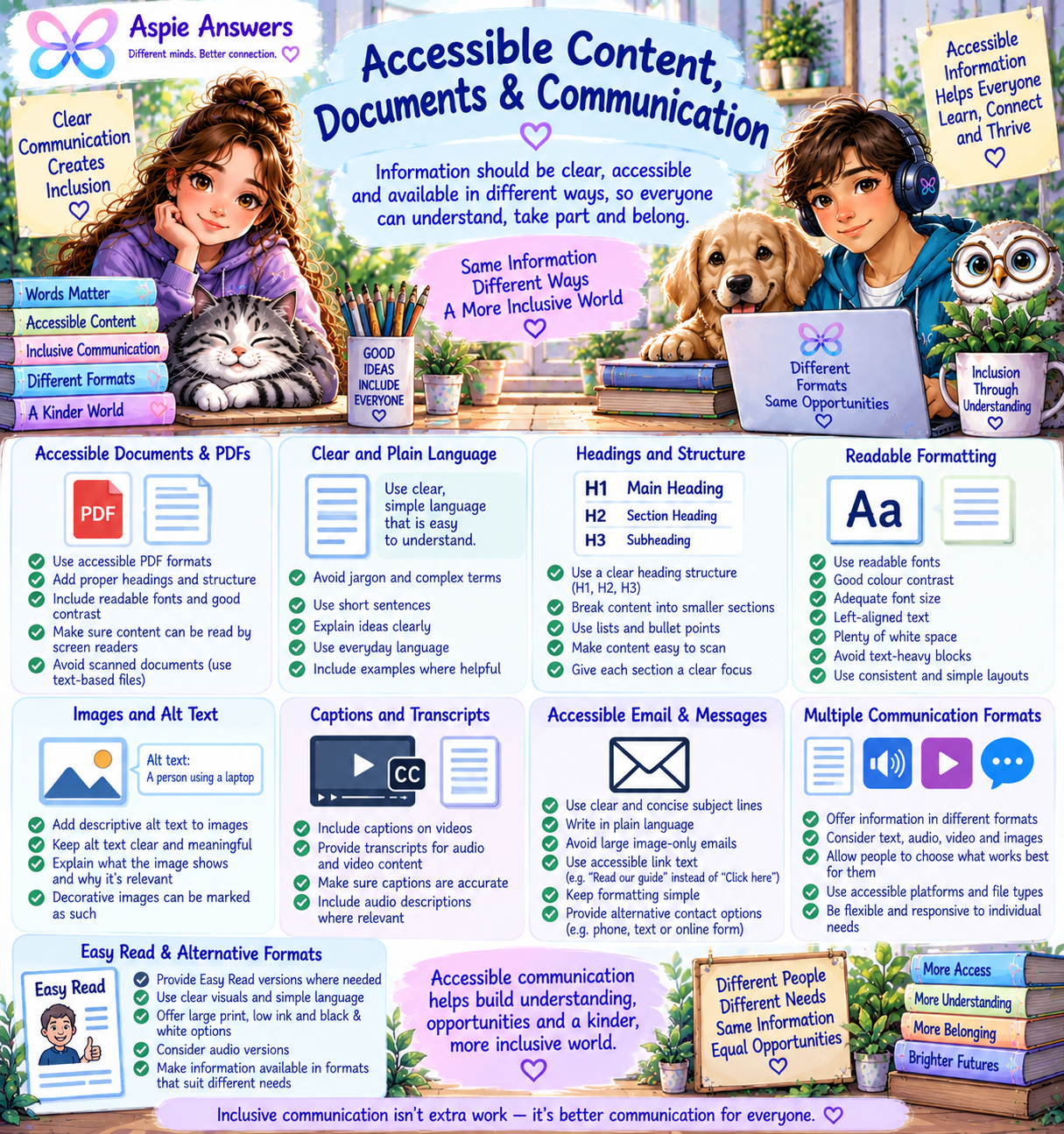
Accessible Content, Documents & Communication
Accessibility is not only about website code. The information people need — including PDFs, emails, forms, videos and instructions — also needs to be understandable and usable.
Clear information
Plain, respectful language and well-organised information can reduce unnecessary cognitive load.
Accessible documents
Use headings, readable formatting, logical structure and accessible document formats rather than relying on inaccessible scanned images of text.
Captions & transcripts
Spoken information should have appropriate alternatives so people are not forced to rely on one sensory channel.
Communication choices
Where possible, offer different ways to receive information, respond, contact someone or complete a task.
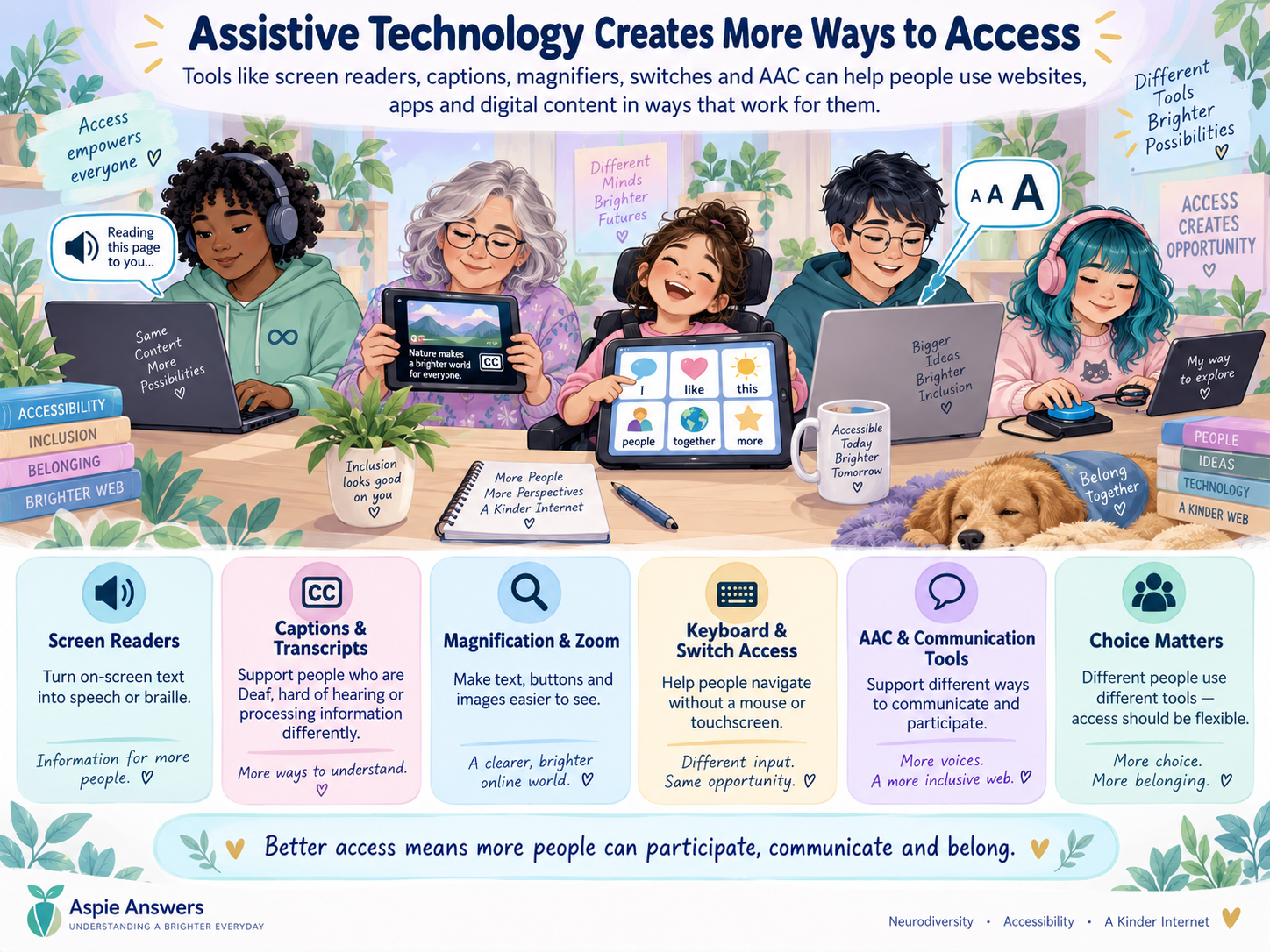
Assistive Technology & Ways of Accessing Digital Content
People may use assistive technology, built-in accessibility settings or personal adaptations to interact with digital content. Accessible design should support those choices rather than require everyone to access information in exactly the same way.
Screen readers
Convert digital text and interface information into speech or other accessible output.
Magnification & zoom
Help enlarge text, controls and visual information without losing functionality or structure.
Keyboard & switch access
Allow people to navigate and activate controls without depending on a mouse or touchscreen.
Voice & speech tools
Voice control, speech recognition, text-to-speech and speech-to-text can support different access and communication needs.
AAC & communication tools
Augmentative and alternative communication systems can support people who communicate in different ways.
Built-in settings
Text size, display settings, captions, contrast, motion controls and other preferences can make everyday devices easier to use.
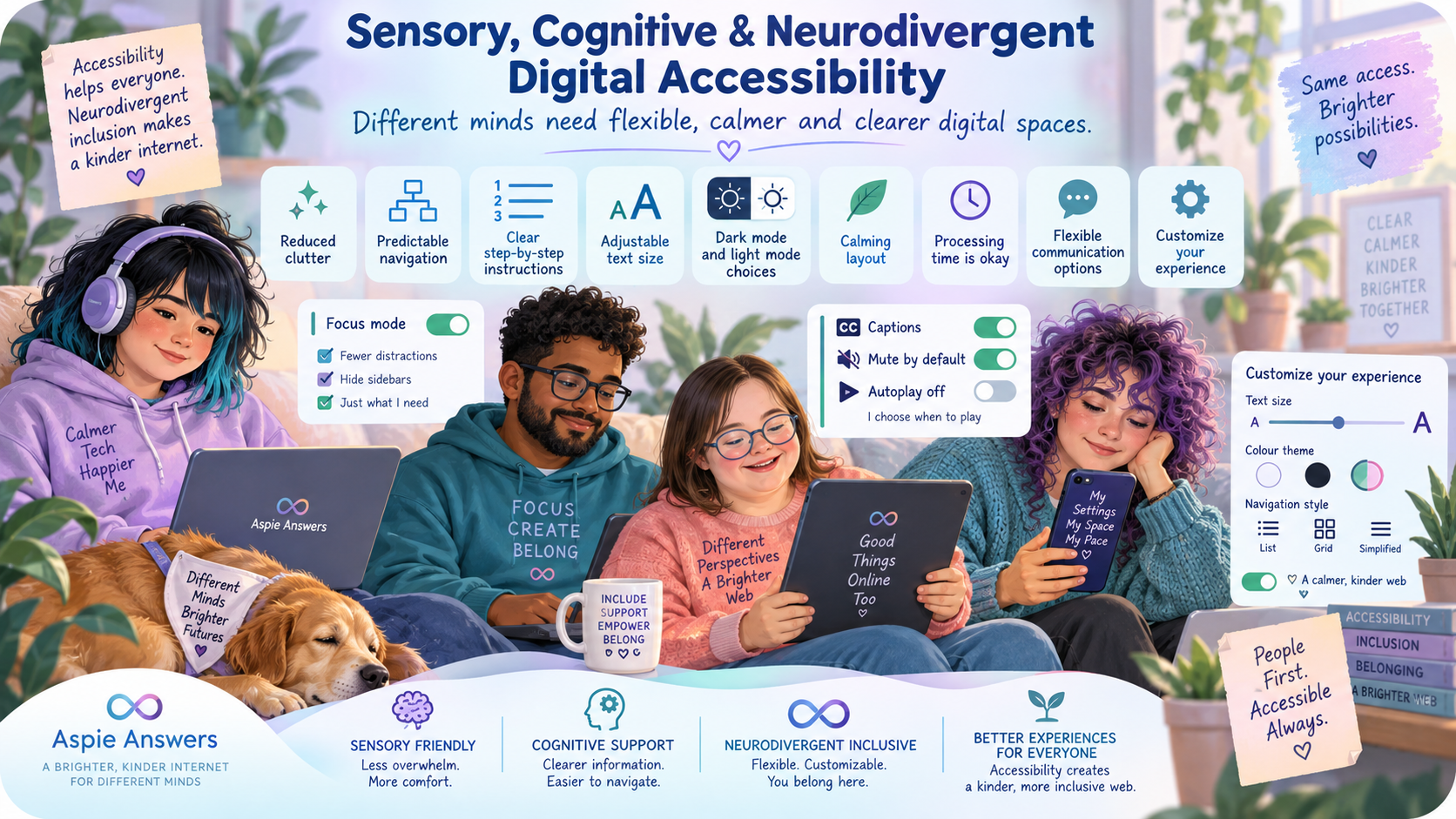
Sensory, Cognitive & Neurodivergent Digital Accessibility
Digital accessibility also includes the ways people process information, manage attention, respond to sensory input, communicate and navigate complex tasks. These needs can be particularly relevant for autistic, ADHD and other neurodivergent people, but can benefit many others too.
Reduce unnecessary overload
Use breathing room, calm layouts, clear visual hierarchy and manageable amounts of information.
Make navigation predictable
Keep menus, buttons and page structures consistent so people do not have to repeatedly relearn how an interface works.
Chunk complex tasks
Breaking instructions and processes into clear steps can reduce working-memory and executive-function demands.
Allow processing time
Avoid unnecessary urgency and rigid time limits when a task does not genuinely require them.
Give people control
Where possible, allow movement, sound, autoplay, display and communication preferences to be adjusted.
Offer more than one route
People may prefer reading, listening, watching, typing, speaking or using other communication and access methods.
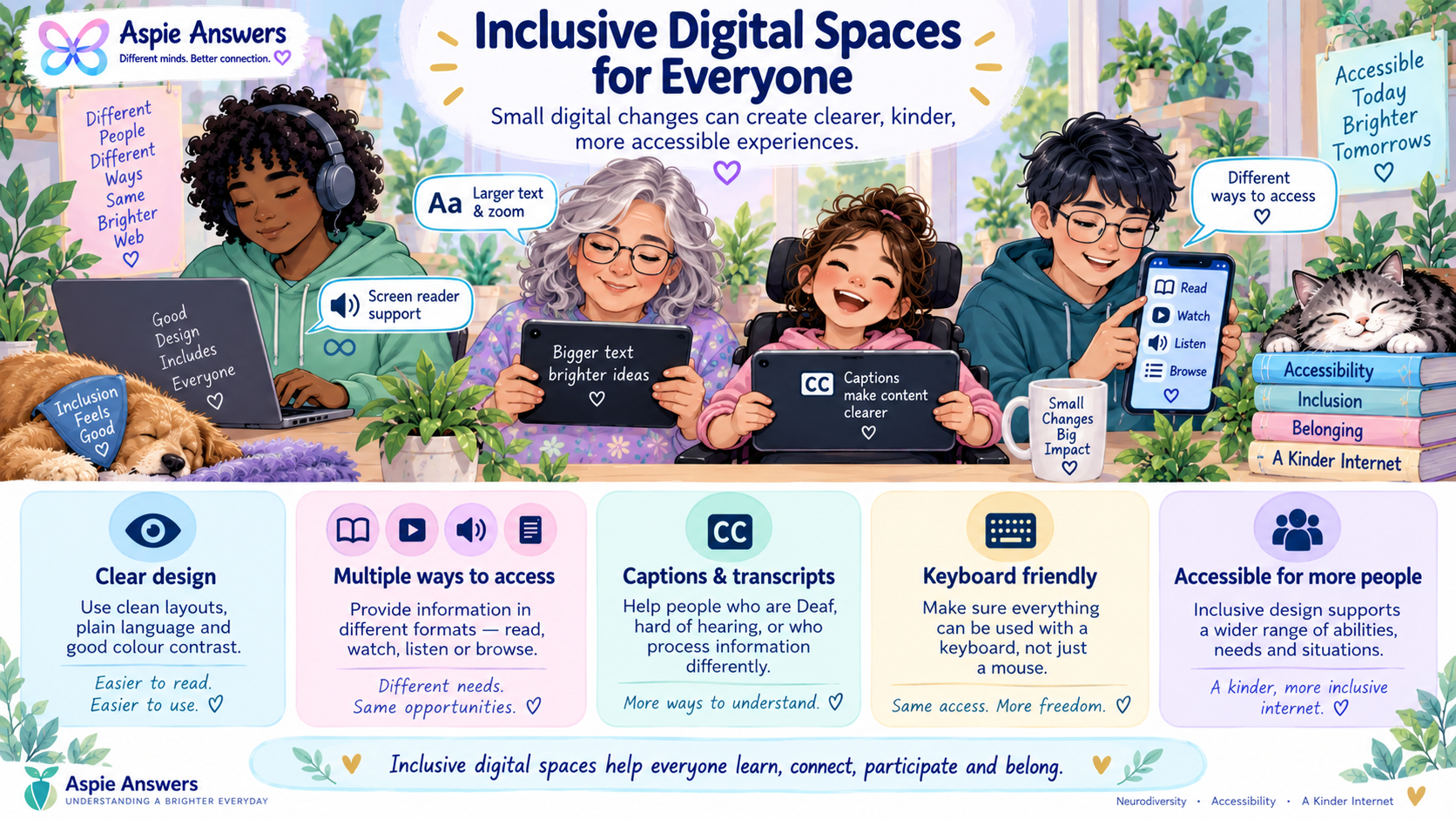
Inclusive Digital Spaces Are for Everyone
Accessible digital design does more than remove technical barriers. It can help more people learn, work, communicate, use services, participate in communities and make their own choices with greater independence.
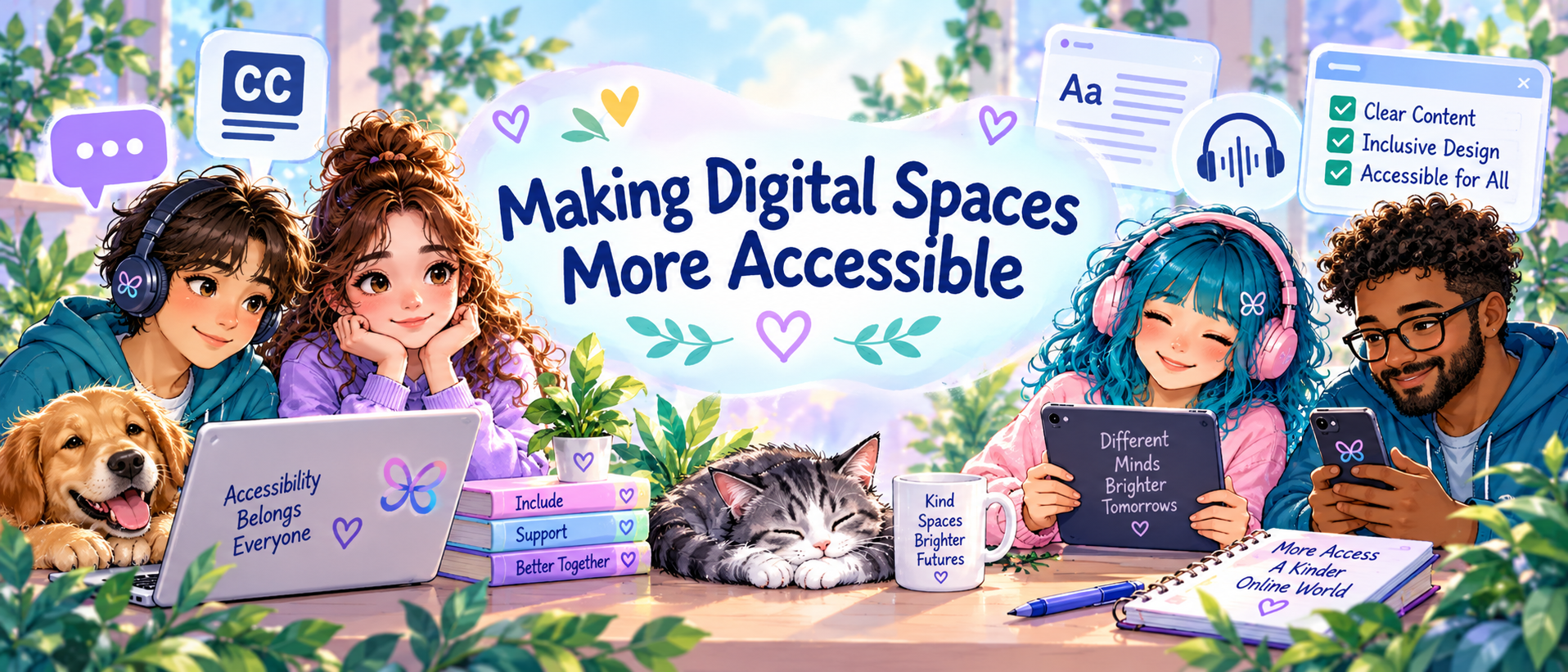
Making Digital Spaces More Accessible
Accessibility does not have to begin with a complete redesign. Organisations, creators, workplaces, schools and community groups can often make meaningful improvements by identifying barriers, involving the people affected and improving access over time.
- Include disabled and neurodivergent people in design and testing.
- Use clear navigation and readable layouts.
- Provide useful alt text, captions and transcripts.
- Create accessible forms and documents.
- Support keyboard use and assistive technology.
- Reduce unnecessary movement, flashing and autoplay.
- Offer different communication and information formats where practical.
- Allow sufficient processing time.
- Review accessibility regularly rather than treating it as a one-time task.
- Listen when people identify barriers — and use that feedback to improve.
A Little Companion Support
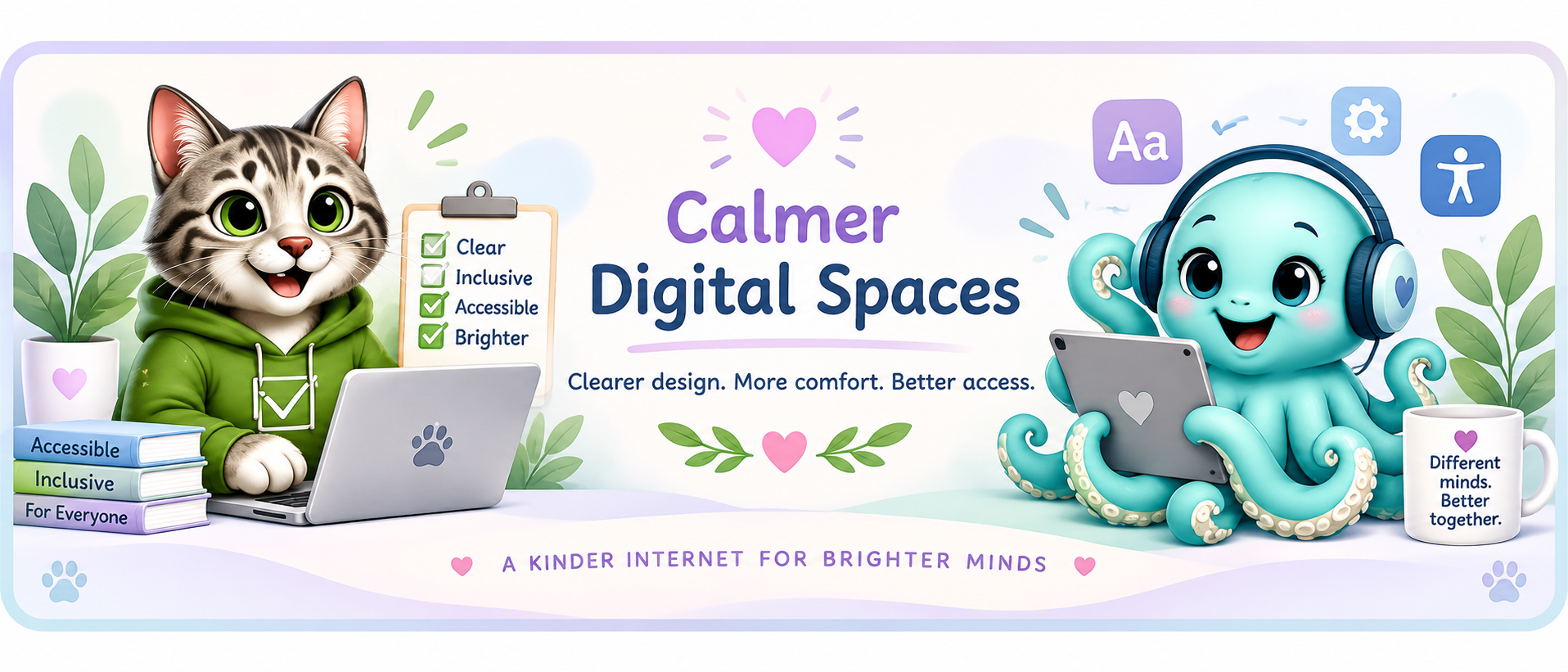
Two Aspie Answers Companions fit particularly well here because accessibility can involve both reducing overload and checking the practical details that make participation easier.
Ollie Octopus — Sensory Support
Ollie reminds us that busy digital environments can ask people to manage too many things at once. Calmer layouts, fewer competing demands and flexible options can help reduce overload.
Checklist Cat — Check, Test & Improve
Checklist Cat helps turn accessibility into practical action: check the navigation, text, images, forms, captions, keyboard access, documents and communication choices — then keep improving.
Digital Accessibility Standards
Accessibility guidance and legal requirements vary by country, organisation and setting. Technical standards can help organisations understand what accessible digital design requires, while lived experience and usability testing help show whether something actually works for real people.
WCAG
The Web Content Accessibility Guidelines organise web accessibility around four broad principles: content and interfaces should be perceivable, operable, understandable and robust. WCAG includes specific testable criteria for web accessibility.
Because standards and official requirements can change, check current government or recognised accessibility guidance when you need formal, legal or technical requirements.
Accessibility & Rights Resources
Digital accessibility connects with wider topics such as reasonable adjustments, self-advocacy, discrimination, inclusive participation and accessible information. The Accessibility & Rights Library brings these pathways together.
Explore the Accessibility & Rights Library Open Downloads & Resources Return to Accessibility & Rights